OGX ❤️ OpenCode

OpenCode is an open source AI coding agent that helps you write code in your terminal, IDE, or desktop. It is a popular open source alternative for tools like Claude Code and Codex.
OpenCode has a concept of providers that is similar to OGX's inference providers - they are a local or cloud-based model inference endpoint that expose an LLM for OpenCode to utilize. This is similar but does differ from OGX providers which are inclusive of inference but also include providers for vector stores, safety backends, tool runtimes, etc.
OGX as a OpenCode provider has some strong advantages over providers that offer only inference:
- Unified API for tools + RAG + storage
- Multiple providers behind one endpoint
- Built-in orchestration layer
In this blog I am going to share how to start running OpenCode with OGX as a provider, using OpenCode's custom provider feature.
The blog assumes you already have an OGX server up and running - see our Getting Started guide to learn more.
Download OpenCode
Downloading OpenCode is simple and can be done in various ways. You can see a full list of methods here but generally the below curl command is suifficient in most cases.
curl -fsSL https://opencode.ai/install | bash
Configure OGX as a provider for OpenCode
As mentioned before, this blog assumes an OGX server is already running at localhost:8321 - in this case, we are also making the following assumptions:
- The
remote::vllmprovider is enabled, serving theQwen/Qwen3-8Bmodel - The
remote::watsonxprovider is enabled, with thegpt-oss-120bmodel available - No authentication has been added
You can verify what models your OGX server has available with curl http://localhost:8321/v1/models
We can now configure OpenCode to use our OGX server via a custom provider.
Create a file ~/.config/opencode/opencode.json with the following content:
{
  "$schema": "https://opencode.ai/config.json",
  "provider": {
    "ogx": {
      "npm": "@ai-sdk/openai-compatible",
      "name": "OGX",
      "options": {
        "baseURL": "http://localhost:8321/v1"
      },
      "models": {
        "vllm-inference/Qwen/Qwen3-8B": {
          "name": "Qwen3-8B"
        },
        "watsonx/openai/gpt-oss-120b": {
          "name": "gpt-oss-120b"
        }
      }
    }
  }
}
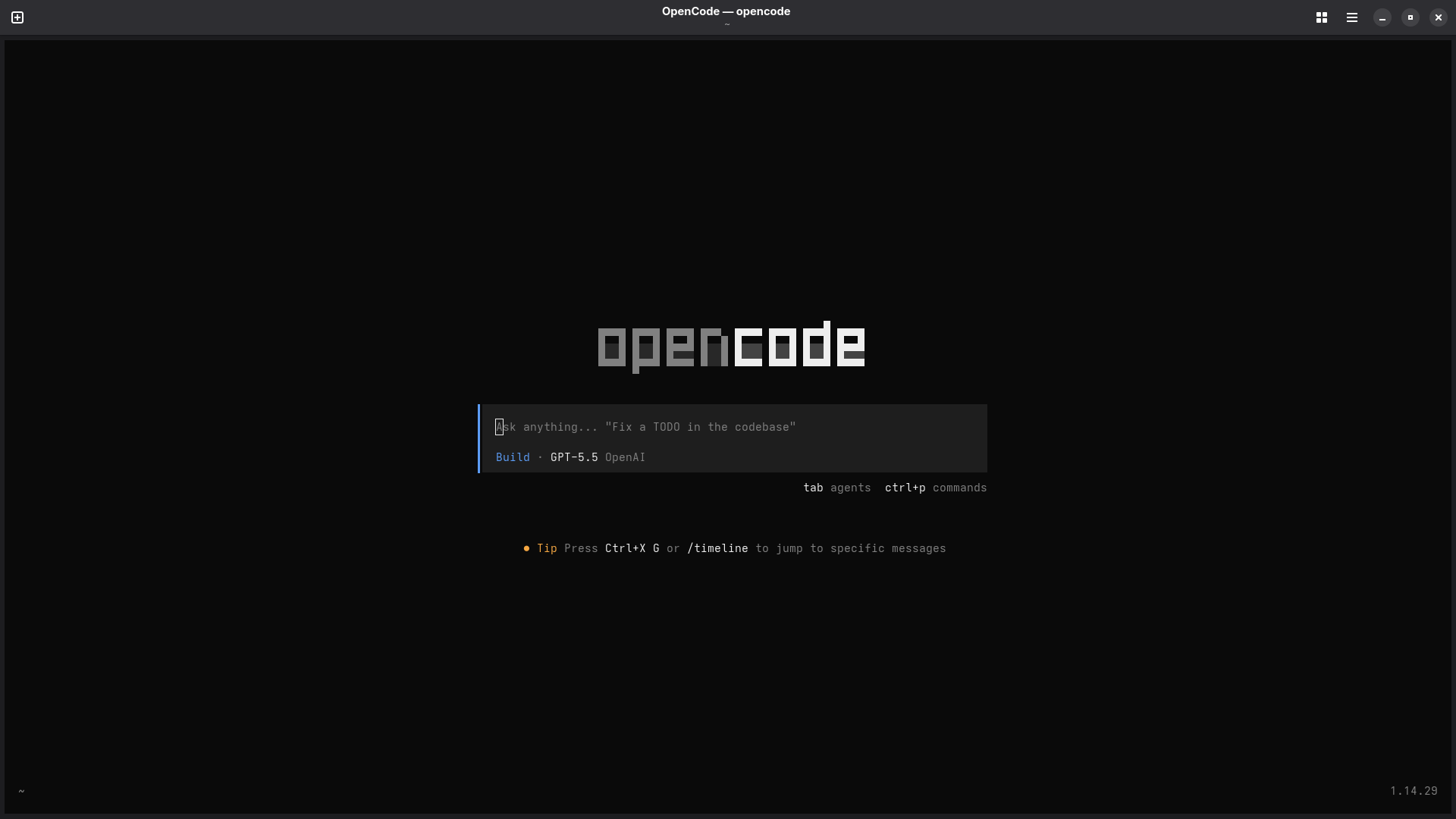
Once the file is created, start OpenCode - it should look something like this:
Run /connect in the TUI. If you search OGX the provider should come up with our two models listed.
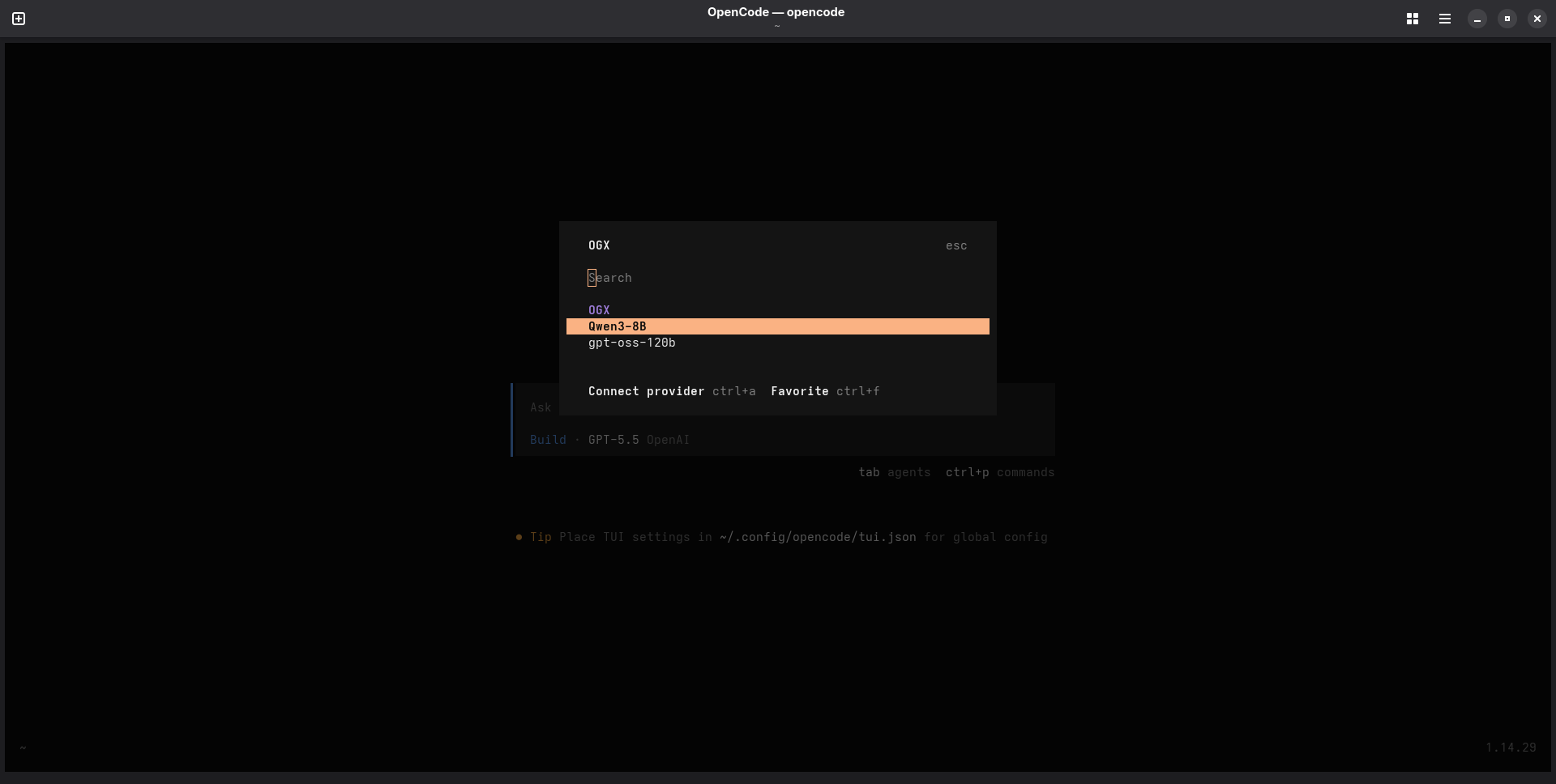
Select gpt-oss-120b and hit enter. If you are prompted for an API key, you can just put None since we haven't configured one in this case.
Use OpenCode with OGX
Now that you have your OGX-provided model selected, it's time to start using OpenCode with OGX! Go ahead and start prompting in the TUI - it should look something like this:
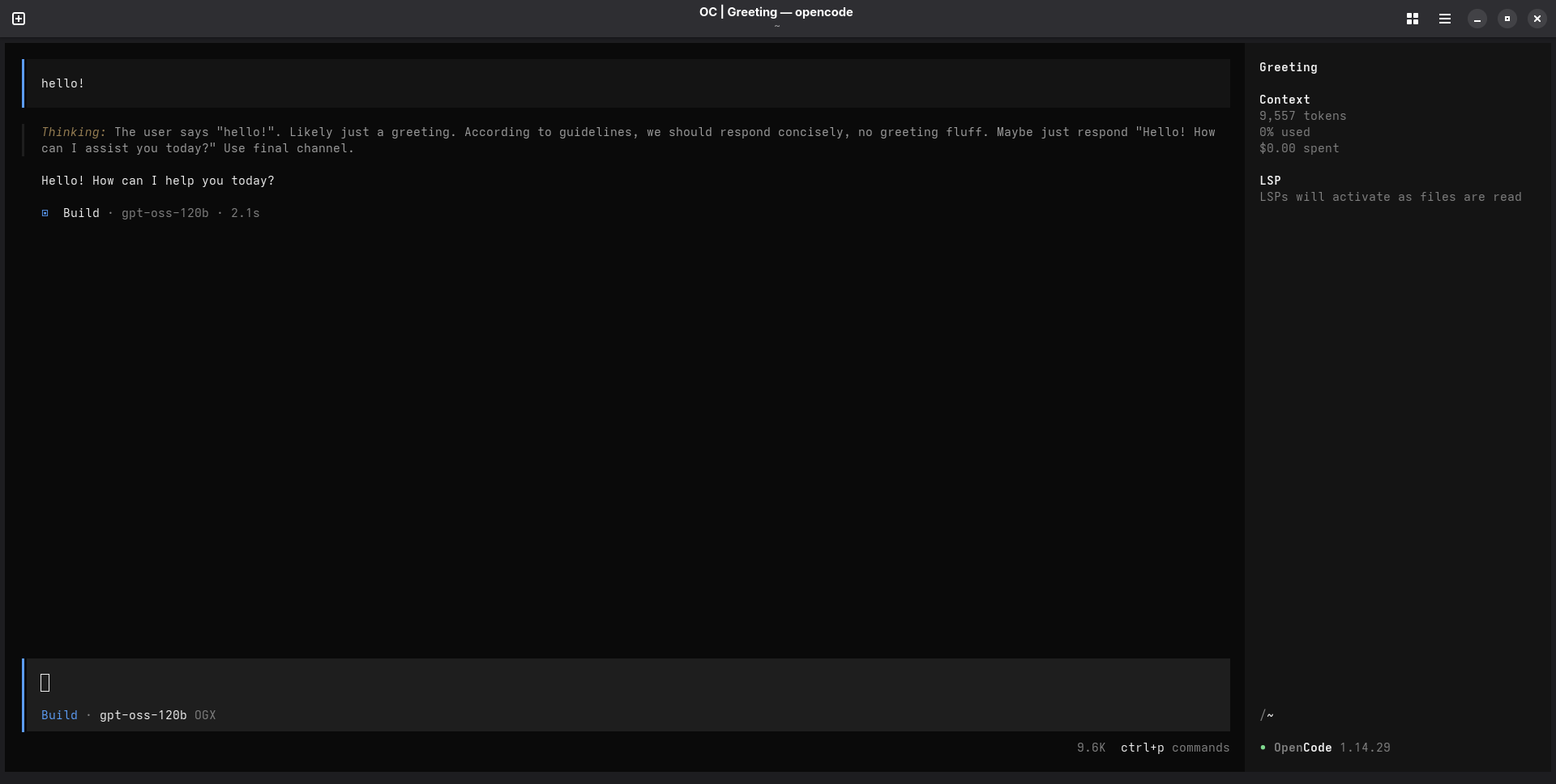
And that is it! You can tweak your OGX server and OpenCode custom provider configuration to add additional providers, models, and whatever else you might need for yourself or your enterprise.
Thanks for reading, and happy coding!